
hotline_oh
-
Posts
723 -
Joined
-
Last visited
-
Days Won
43
Everything posted by hotline_oh
-
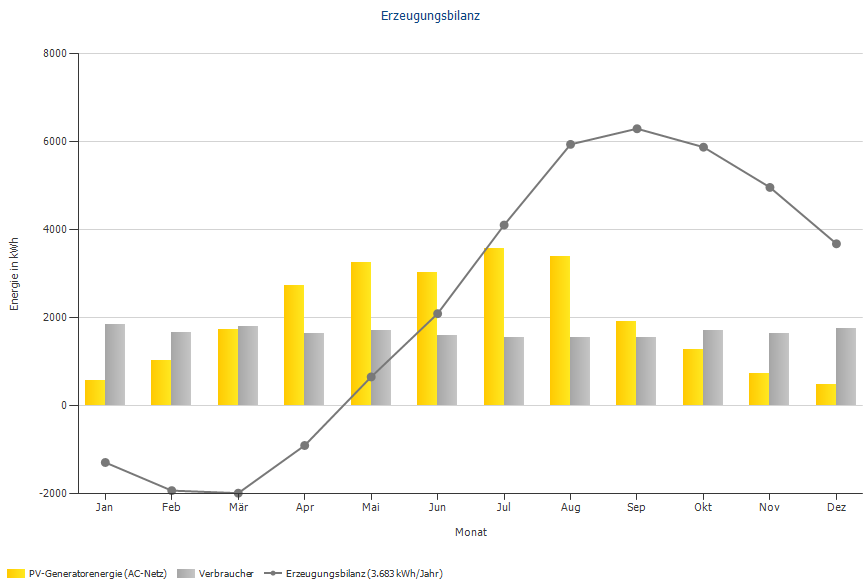
Hallo, vielen Dank für Ihre Anfrage. Im Projekt "3D East West Roof", das Sie in den Beispielprojekten finden, sieht die Erzeugungsbilanz beispielhaft so aus: Im Diagramm „Erzeugungsbilanz“ werden PV-Ertrag und Verbrauch gegenübergestellt. Im Januar und Februar ist der Verbrauch höher als der PV-Ertrag, deshalb ist die Erzeugungsbilanz negativ. Im März/April ändert sich das Verhältnis aus PV-Ertrag und Verbrauch, die Erzeugungsbilanz wird positiv und erreicht im September ihr Maximum. Im Oktober, November und Dezember ist der Verbrauch wieder höher als der PV-Ertrag, deswegen nimmt die Erzeugungsbilanz wieder leicht ab. Am Ende des Jahres beträgt die Erzeugungsbilanz 3.683 kWh/Jahr, das heißt, der PV-Jahresertrag ist 3.683 kWh höher als der Jahresverbrauch.
-
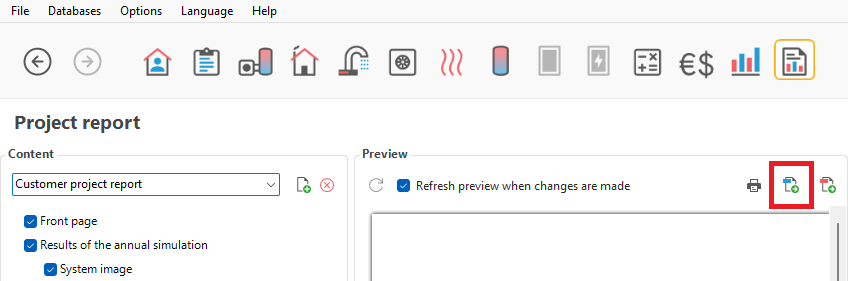
Dear Krzysztof, Thank you for your inquiry. We have forwarded your request to our development department. One workaround would be to export the project report as a .doc file and paste the desired simulation results into the report in Word.
-
 During a major system update, access to our online databases (components, tariffs, etc.) will be unavailable. You can use our software normally to view and simulate existing projects. The following restrictions apply: It is not possible to create new data records. No access to already self-created data records. The data stock of the offline databases is not up-to-date compared to the online databases. We apologize for any inconvenience!
 -
Während einer größeren Systemaktualisierung wird der Zugriff auf unsere Online-Datenbanken (Produkte, Tarife etc.) nicht verfügbar sein. Sie können die Software normal verwenden, um vorhandene Projekte zu betrachten und zu simulieren. Es gibt folgende Einschränkungen: Das Erstellen neuer Datensätze ist nicht möglich. Kein Zugriff auf bereits selbst erstellte Datensätze. Der Datenbestand der Offline-Datenbanken ist im Vergleich zu den Online-Datenbanken nicht aktuell. Wir bitten um Entschuldigung für die Unannehmlichkeiten!
-
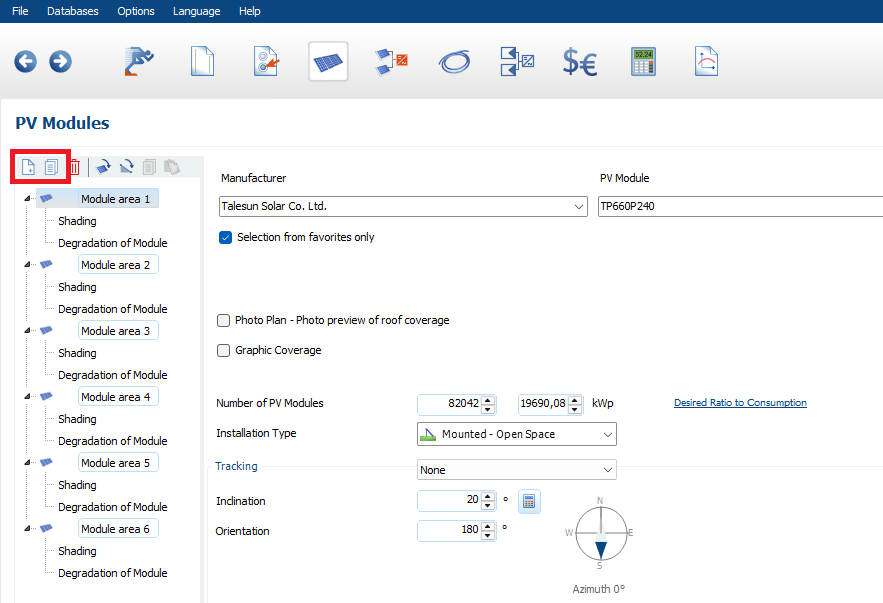
Hello, Thank you for your inquiry. In the 2D planning of PV*SOL premium and PV*SOL, the number of modules per sub-generator is limited to 100,000. For more than 100,000 modules, you can add additional module areas (or copy an existing module area):
-
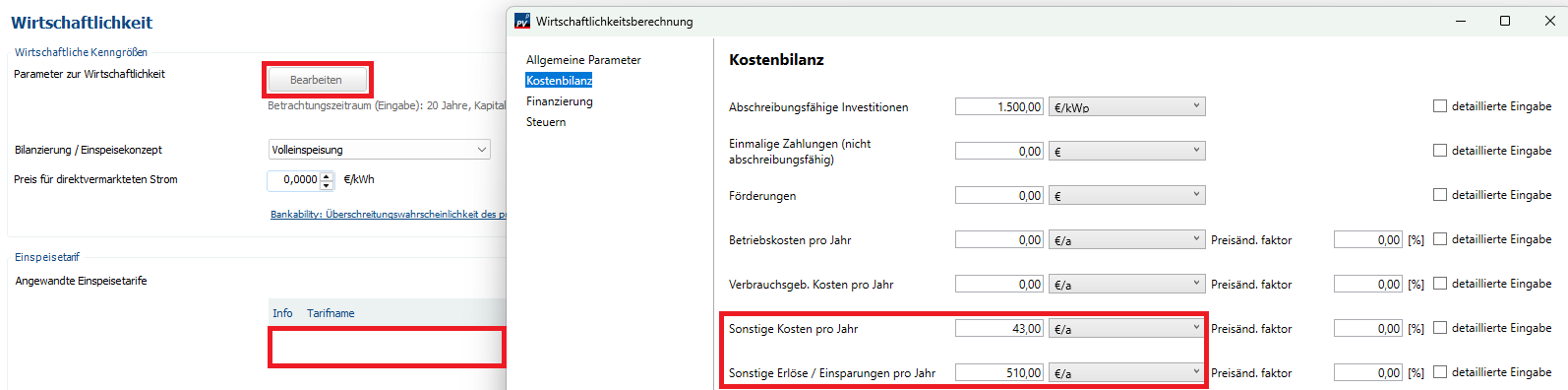
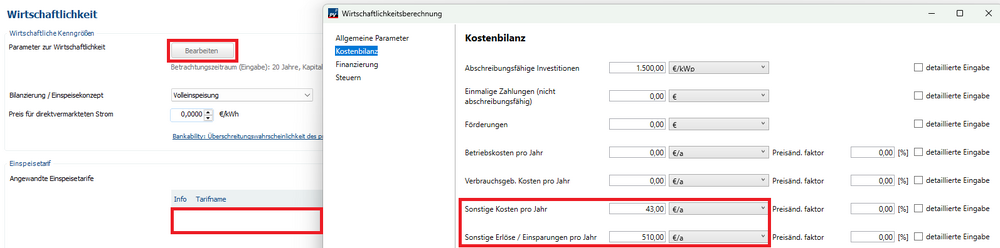
Guten Tag, vielen Dank für Ihre Anfrage. Beim Anlegen eines Einspeisetarifs können leider keine negativen Werte eingegeben werden. Sie haben die Möglichkeit, den Einspeisetarif zu löschen und in der Kostenbilanz die negativen Börsenstrompreise unter "Sonstige Kosten pro Jahr" sowie die positiven Börsenstrompreise unter "Sonstige Erlöse/Einsparungen pro Jahr" zu berücksichtigen:
-
Prüfung PV*SOL-Datensatz Sungrow SH10T + SBH100 (10 kWh)
hotline_oh replied to Dietmar's topic in PV*SOL
Guten Tag, vielen Dank für Ihre Anfrage. Wie Sie schreiben, wird die maximale Lade-/Entladeleistung manchmal durch den Wechselrichter und manchmal durch das Batteriesystem begrenzt. Darüber hinaus kommt es manchmal vor, dass sich im Zusammenspiel aus beiden eine wieder andere maximale Lade-/Entladeleistung ergibt. Die Datenbank wird von den Herstellern gepflegt. Sungrow hat den Datensatz selbst angelegt. Wir werden den Hersteller kontaktieren und um Prüfung und ggf. Korrektur bitten. -
Hello, Thank you for your inquiry. Unfortunately, we have no control over how up-to-date Google’s map data is. Selected maps are often more up-to-date, whilst orthophotos and elevation data are only available for older map data.
-
Hallo, vielen Dank für deine Anfrage. Bitte sende uns deine Projektdatei (*.pvprj) an hotline@valentin-software.com, dann sehen wir uns das an.
-
Hallo, vielen Dank für deine Anfrage. Bitte sende uns deine Projektdatei (*.pvprj) an hotline@valentin-software.com, dann sehen wir uns das an.
-
PV-Sol 2026 R7 - Fehler in der Wirtschaftlichkeitsberechnung
hotline_oh replied to T. Bucher's topic in PV*SOL
Guten Tag, vielen Dank für Ihre Anfrage. Für die Investitionskosten des Batteriespeichers haben Sie einen Preisänderungsfaktor von 2 % eingetragen. Den Kapitalzins haben Sie ebenfalls mit 2 % angegeben. Diese beiden Werte heben einander auf, weshalb im 21. Jahr eine Reinvestition von genau 10.000 CHF fällig wird. (Wenn Sie den Kapitalzins auf 0 % setzen, sehen Sie, dass der Preisänderungsfaktor berücksichtigt wird.) Die positiven Investitionskosten im 26. Jahr sind der Restwert der Investitionen (Summe der Restwerte der PVA und des Batteriespeichers). Das 26. Jahr in der Cashflow-Tabelle wird immer dann angezeigt, wenn es einen Restwert gibt. Nur wenn beide Nutzungsdauern mit 25 Jahren angegeben werden (es also keinen Restwert gibt), werden in der Cashflow-Tabelle genau 25 Jahre ausgegeben. -
This is Part 1 of our introduction to system design with PV*SOL. You can find Part 2 of the webinar here. Topics covered in this webinar: Grid-connected systems Grid feed-in with self-consumption, battery storage, and electric vehicles MeteoSyn climate data module Load profiles Photo Plan, graphical module layout Polystring configuration and power optimizers You can find more information about PV*SOL and PV*SOL premium at https://valentin-software.com/ Follow us on Facebook / valentinsoftware or LinkedIn / valentin-software
-
This is Part 2 of our introduction to system design with PV*SOL. You can find Part 1 of the webinar here. Topics covered in this webinar: Initial steps in 3D system design Shading objects Module coverage and mounting Module configuration Planning using Bing or Google Maps and imported digital images Planning using an imported 3D model You can find more information about PV*SOL and PV*SOL premium at https://valentin-software.com/ Follow us on Facebook / valentinsoftware or LinkedIn / valentin-software
-
In this webinar, you will be shown the fundamental steps for system design using high-resolution orthophotos and elevation data via the Google Solar API (available starting with PV*SOL premium 2024 R7). You can find more information about PV*SOL and PV*SOL premium at https://valentin-software.com/ Follow us on Facebook / valentinsoftware or LinkedIn / valentin-software
-
This is a beginner's tutorial. It shows you the basic steps for designing a roof-parallel PV system in PV*SOL premium. It guides you through the entire process, right up to the completed simulation. Would you like to learn more? You can find our two-part webinar "Introduction to System Design with PV*SOL" here: [PV*SOL Webinar] Introduction to System Design – Part 1 (2D) [PV*SOL Webinar] Introduction to System Design – Part 2 (3D) You can find more information about PV*SOL and PV*SOL premium at https://valentin-software.com/ Follow us on Facebook / valentinsoftware or LinkedIn / valentin-software
-
This is a beginner's tutorial. It shows you the basic steps for designing a ground-mounted PV system in PV*SOL premium. It guides you through the entire process, right up to the completed simulation. Would you like to learn more? You can find our two-part webinar "Introduction to System Design with PV*SOL" here: [PV*SOL Webinar] Introduction to System Design – Part 1 (2D) [PV*SOL Webinar] Introduction to System Design – Part 2 (3D) You can find more information about PV*SOL and PV*SOL premium at https://valentin-software.com/ Follow us on Facebook / valentinsoftware or LinkedIn / valentin-software
-
This Tutorial is a step by step guide to the use of Solcast climate data within PV*SOL. The Solcast API is available in PV*SOL premium 2022 Release 1 and newer.
-
[Tutorial] Determining the scale of imported 3D models
hotline_oh posted a question in Tutorials (Read only)
Determining the scale of imported 3D models Not all 3D models that you get or create from drone data are already to the right scale. We will show you how to set the right scale using a dimension. First of all we import a 3D model where we know one of the dimensions. To make drawing easier, we activate the option "Use as a terrain model". Next, we choose a suitable perspective to draw a polygon on the dimension known to us. We now draw a polygon for the mounting surface and then see how long the given edge is now. We know that the edge measures 15.25 m in reality. This shows that the incorrect scale was stored in the 3D model. The dimensions can be corrected by changing the maximum height. With the formula: Real edge length * current height / determined edge length = searched height we can determine the maximum height. The calculated height is entered here: In the last step we check if the given edge has the desired length. You can now see the desired length of the given edge. End of the tutorial Thank you for your attention! -
[Webinar] Einführung in die Anlagenplanung – Teil 1 (2D)
hotline_oh posted a question in Tutorials (Nur lesen)
Dies ist Teil 1 unserer Einführung in die Anlagenplanung mit PV*SOL. Schauen Sie Teil 2 des Webinars (3D) hier. Die Themen des Webinars sind: Netzgekoppelte Anlagen Netzeinspeisung mit Eigenverbrauch, Batteriespeicher und Elektrofahrzeug Klimadatenmodul MeteoSyn Lastprofile Photo Plan, Grafische Belegung Polystring-Verschaltung und Leistungsoptimierer Zielgruppe: Planer, Anlagenplanerinnen, Installateure, Handwerkerinnen, Energieberater, Gutachterinnen, Umwelttechniker, Architektinnen, Studierende, Auszubildende Mehr Informationen zu PV*SOL und PV*SOL premium finden Sie unter https://valentin-software.com/ Folgen Sie uns auf Facebook / valentinsoftware oder LinkedIn / valentin-software -
[Webinar] Einführung in die Anlagenplanung – Teil 2 (3D)
hotline_oh posted a question in Tutorials (Nur lesen)
Dies ist Teil 2 unserer Einführung in die Anlagenplanung mit PV*SOL premium. Schauen Sie Teil 1 des Webinars (2D) hier. Die Themen des Webinars sind: Erste Schritte der 3D-Anlagenplanung Eingabe von Belegungs- und Verschattungsobjekten Modulbelegung, dachparallel und aufgeständert Verschaltungsmöglichkeiten Planung mit Karten (Bing, Google, importierte Bilddateien) Planung mit importierten 3D-Modellen Zielgruppe: Planer, Anlagenplanerinnen, Installateure, Handwerkerinnen, Energieberater, Gutachterinnen, Umwelttechniker, Architektinnen, Studierende, Auszubildende Mehr Informationen zu PV*SOL und PV*SOL premium finden Sie unter https://valentin-software.com/ Folgen Sie uns auf Facebook / valentinsoftware oder LinkedIn / valentin-software -
[Tutorial] Automatische 3D-Gebäudemodelle von Rexplorer
hotline_oh posted a question in Tutorials (Nur lesen)
Mit PV*SOL premium lassen sich Photovoltaikanlagen jetzt noch schneller und präziser planen. Eine neue Schnittstelle zum Datenanbieter Rexplorer ermöglicht den Import von 3D-Modellen eines Großteils der Gebäude in Deutschland per Mausklick. Die Modelle basieren auf amtlichen LiDAR-Scans und Luftbildaufnahmen, sind direkt nutzbar und zeichnen sich durch verzerrungsfreie Dachansichten aus. So funktioniert es: Nach Eingabe des gewünschten Standorts in PV*SOL premium werden automatisch alle Gebäude im Umkreis von 100 Metern mit exakter geografischer Position als 3D-Modelle importiert. Dank orthofotografischer Dachtexturen sind Aufbauten wie Gauben oder Schornsteine klar erkennbar – ideal für die Belegung mit PV-Modulen. Eine Schritt-für-Schritt-Anleitung finden Sie auf den PV*SOL-Hilfeseiten. Für NutzerInnen von PV*SOL premium ist der Abruf der ersten zehn Standorte kostenfrei. Für unbegrenzten Zugriff bietet Rexplorer ein Abonnement für 19 € pro Monat an. -
Dieses Webinar zeigt Ihnen die grundlegenden Schritte zur Anlagenplanung mit hochauflösenden Orthofotos und Höhendaten über die Google Solar API (verfügbar ab PV*SOL premium 2024 R7). Mehr Informationen zu PV*SOL und PV*SOL premium finden Sie unter https://valentin-software.com/ Folgen Sie uns auf Facebook / valentinsoftware oder LinkedIn / valentin-software
-
Dies ist ein Einsteiger-Tutorial (deutsche Untertitel vorhanden). Es zeigt Ihnen die grundlegenden Schritte zur Auslegung einer dachparallelen PV-Anlage in PV*SOL premium. Es führt Sie durch den gesamten Prozess bis hin zur abschließenden Simulation. Möchten Sie mehr erfahren? Schauen Sie sich hier unser zweiteiliges Webinar "Einführung in die Anlagenplanung" an: [PV*SOL Webinar] Einführung in die Anlagenplanung – Teil 1 (2D) [PV*SOL Webinar] Einführung in die Anlagenplanung – Teil 2 (3D) Mehr Informationen zu PV*SOL und PV*SOL premium finden Sie unter https://valentin-software.com/ Folgen Sie uns auf Facebook / valentinsoftware oder LinkedIn / valentin-software
-
Tutorial für Profi-AnwenderInnen von PV*SOL premium Komplexere Gebäude können in PV*SOL premium aus mehreren Einzelgebäuden zusammengesetzt werden. Wir zeigen die Erstellung eines Winkelbungalows mittels der Planungsoption "Kartenausschnitt". Dazu verwenden wir einen eigenen Grundriss, der skaliert werden muss, um später die genauen Gebäudeabmessungen zu erhalten. Durch Zeichnen eines Polygonzuges legen wir die Grundflächen der Teilgebäude fest, die anschließend über die Eingabe einer Höhe extrudiert werden. Nach Deaktivierung der Kollision können die Teilgebäude ineinandergeschoben werden und man erhält den gewünschten Winkelbungalow. Mehr Informationen zu PV*SOL und PV*SOL premium finden Sie unter https://valentin-software.com/ Folgen Sie uns auf Facebook / valentinsoftware oder LinkedIn / valentin-software
-
Tutorial für Profi-AnwenderInnen von PV*SOL premium In diesem Video wird Ihnen gezeigt, wie unterschiedlich ausgerichtete Dachflächen mit einem SolarEdge-Wechselrichter verschaltet werden. Hierfür wird die Option "Polystring-Verschaltung" und die Option "Stränge in Reihe schalten" genutzt, um die unterschiedlichen Dachflächen in einem Strang zu verschalten. Mehr Informationen zu PV*SOL und PV*SOL premium finden Sie unter https://valentin-software.com/ Folgen Sie uns auf Facebook / valentinsoftware oder LinkedIn / valentin-software