
hotline_oh
-
Posts
726 -
Joined
-
Last visited
-
Days Won
43
Everything posted by hotline_oh
-
 Dies ist ein Einsteiger-Tutorial (deutsche Untertitel vorhanden). Es zeigt Ihnen die grundlegenden Schritte zur Auslegung einer dachparallelen PV-Anlage in PV*SOL premium. Es führt Sie durch den gesamten Prozess bis hin zur abschließenden Simulation. Möchten Sie mehr erfahren? Schauen Sie sich hier unser zweiteiliges Webinar "Einführung in die Anlagenplanung" an: [PV*SOL Webinar] Einführung in die Anlagenplanung – Teil 1 (2D) [PV*SOL Webinar] Einführung in die Anlagenplanung – Teil 2 (3D) Mehr Informationen zu PV*SOL und PV*SOL premium finden Sie unter https://valentin-software.com/ Folgen Sie uns auf Facebook / valentinsoftware oder LinkedIn / valentin-software
 -
Tutorial für Profi-AnwenderInnen von PV*SOL premium Komplexere Gebäude können in PV*SOL premium aus mehreren Einzelgebäuden zusammengesetzt werden. Wir zeigen die Erstellung eines Winkelbungalows mittels der Planungsoption "Kartenausschnitt". Dazu verwenden wir einen eigenen Grundriss, der skaliert werden muss, um später die genauen Gebäudeabmessungen zu erhalten. Durch Zeichnen eines Polygonzuges legen wir die Grundflächen der Teilgebäude fest, die anschließend über die Eingabe einer Höhe extrudiert werden. Nach Deaktivierung der Kollision können die Teilgebäude ineinandergeschoben werden und man erhält den gewünschten Winkelbungalow. Mehr Informationen zu PV*SOL und PV*SOL premium finden Sie unter https://valentin-software.com/ Folgen Sie uns auf Facebook / valentinsoftware oder LinkedIn / valentin-software
-
Tutorial für Profi-AnwenderInnen von PV*SOL premium In diesem Video wird Ihnen gezeigt, wie unterschiedlich ausgerichtete Dachflächen mit einem SolarEdge-Wechselrichter verschaltet werden. Hierfür wird die Option "Polystring-Verschaltung" und die Option "Stränge in Reihe schalten" genutzt, um die unterschiedlichen Dachflächen in einem Strang zu verschalten. Mehr Informationen zu PV*SOL und PV*SOL premium finden Sie unter https://valentin-software.com/ Folgen Sie uns auf Facebook / valentinsoftware oder LinkedIn / valentin-software
-
Tutorial für Profi-AnwenderInnen von PV*SOL und PV*SOL premium In einigen Fällen ist es erforderlich, Bezugstarife mit einer komplexeren Tarifstruktur in der Planung der Photovoltaikanlage zu berücksichtigen. Wir zeigen das Anlegen eines Tarifes mit Hoch- und Niedertarif, der sowohl im Tagesverlauf als auch an den verschiedenen Wochentagen unterschiedliche Preiszonen aufweist. Mehr Informationen zu PV*SOL und PV*SOL premium finden Sie unter https://valentin-software.com/ Folgen Sie uns auf Facebook / valentinsoftware oder LinkedIn / valentin-software
-
Tutorial für Profi-AnwenderInnen von PV*SOL und PV*SOL premium Bei der Planung von PV-Anlagen, für die eine Einspeiseabregelung vorgeschrieben ist, führt eine Simulation mit Minutenwerten zu realistischeren Ergebnissen als eine Stundensimulation. Der Grund dafür ist, dass bei der Berechnung mit Minutenwerten die Realität an Tagen mit starken Einstrahlungsschwankungen besser abgebildet wird. Bei der Simulation mit Stundenwerten lassen sich dagegen nur die hohen kurzzeitigen Strahlungen herausmitteln. Im Video zeigen wir Ihnen die unterschiedlichen Ergebnisse der Simulation. Mehr Informationen zu PV*SOL und PV*SOL premium finden Sie unter https://valentin-software.com/ Folgen Sie uns auf Facebook / valentinsoftware oder LinkedIn / valentin-software
-
[Tutorial] Halbzellen-PV-Module in PV*SOL premium
hotline_oh posted a question in Tutorials (Nur lesen)
Tutorial für Profi-AnwenderInnen von PV*SOL premium Halbzellen-PV-Module (half-cut solar cells) sind der neueste Trend bei den PV-Modulherstellern. Wir erklären in diesem Tutorial, wie sie sich von herkömmlichen PV-Modulen unterscheiden und wie man sie in PV*SOL premium simulieren kann. Mehr Informationen zu PV*SOL und PV*SOL premium finden Sie auf unserer Webseite: https://valentin-software.com/ Folgen Sie uns auf Facebook: / valentinsoftware oder LinkedIn: / valentin-software -
Hilfestellung bei der nachträglichen Ermittlung der Abmessungen von importierten 3D-Modellen Nicht alle 3D-Modelle, die man erhält oder die man aus Drohnendaten erstellt hat, verfügen bereits über den richtigen Maßstab. Wir zeigen, wie man anhand einer Strecke den richtigen Maßstab einstellt. Als Erstes importieren wir ein 3D-Modell, von dem wir eine Abmessung kennen. Um das Einzeichnen zu erleichtern, aktivieren wir die Option "Als Geländemodell verwenden". Als Nächstes wählen wir eine geeignete Perspektive, um ein Polygon an die uns bekannte Abmessung zu zeichnen. Wir zeichnen nun ein Belegungsflächen-Polygon ein und sehen nun, wie lang die gegebene Kante aktuell ist. Von dieser Kante wissen wir, dass sie in der Realität 15,25 m misst. Daraus folgt, dass ein falscher Maßstab im 3D-Modell hinterlegt war. Eine Korrektur der Abmessungen kann über die Änderung der maximalen Höhe erfolgen. Mit der Formel: Reale Kantenlänge * aktuelle Höhe / ermittelte Kantenlänge = gesuchte Höhe können wir die maximale Höhe ermitteln. h = 15,25m * 11,877 m / 11,287 m = 16.047 m Die berechnete Höhe tragen wir hier ein. Im letzten Schritt überprüfen wir, ob die gegebene Kante nun tatsächlich die gewünschte Länge hat. Sie sehen nun, die gewünschte Länge der gegeben Kante. Ende des Tutorials Vielen Dank für Ihre Aufmerksamkeit!
-
orientation Can you rotate multiple buildings or change the orientation
hotline_oh replied to labrosse's topic in PV*SOL
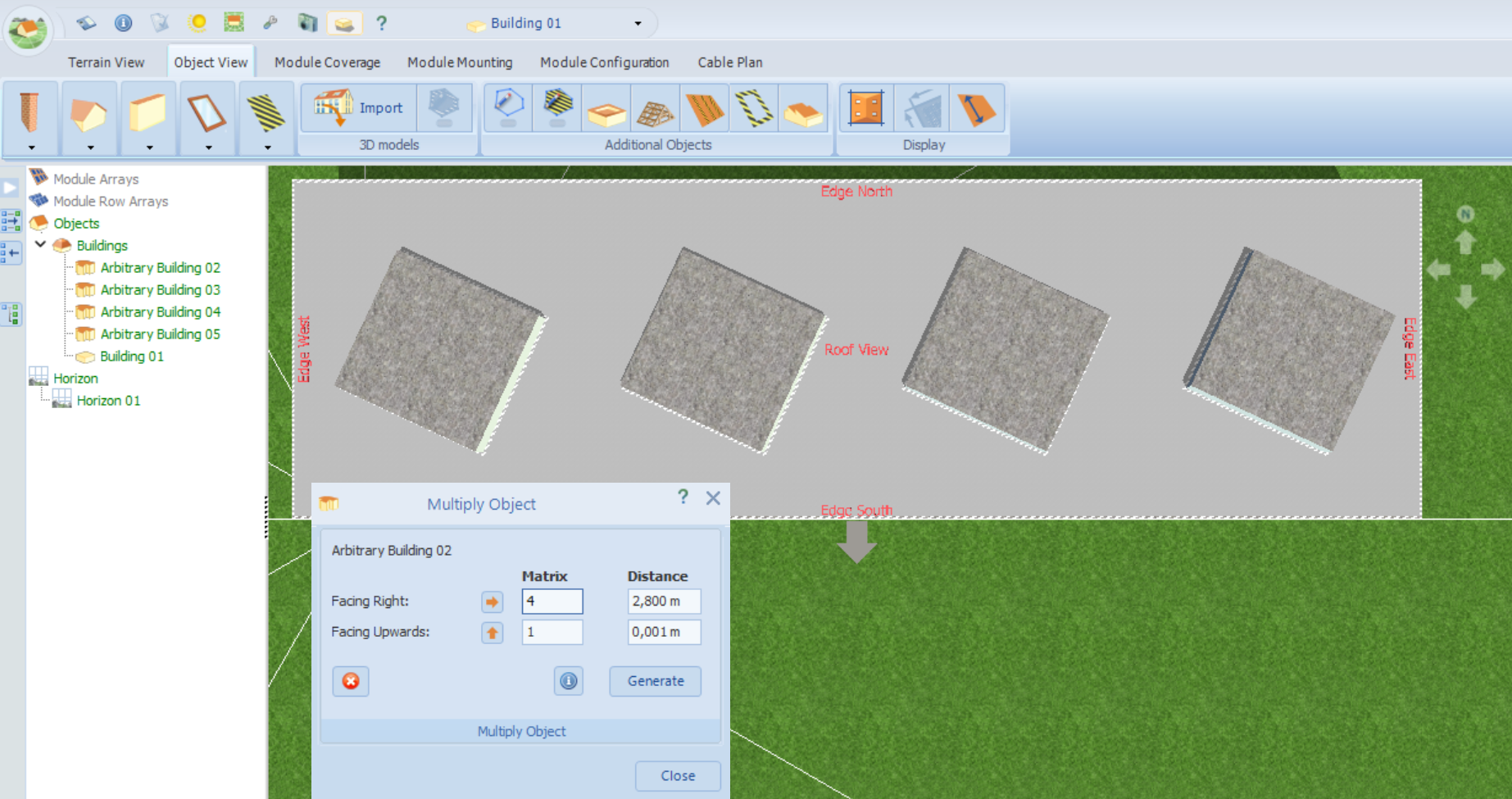
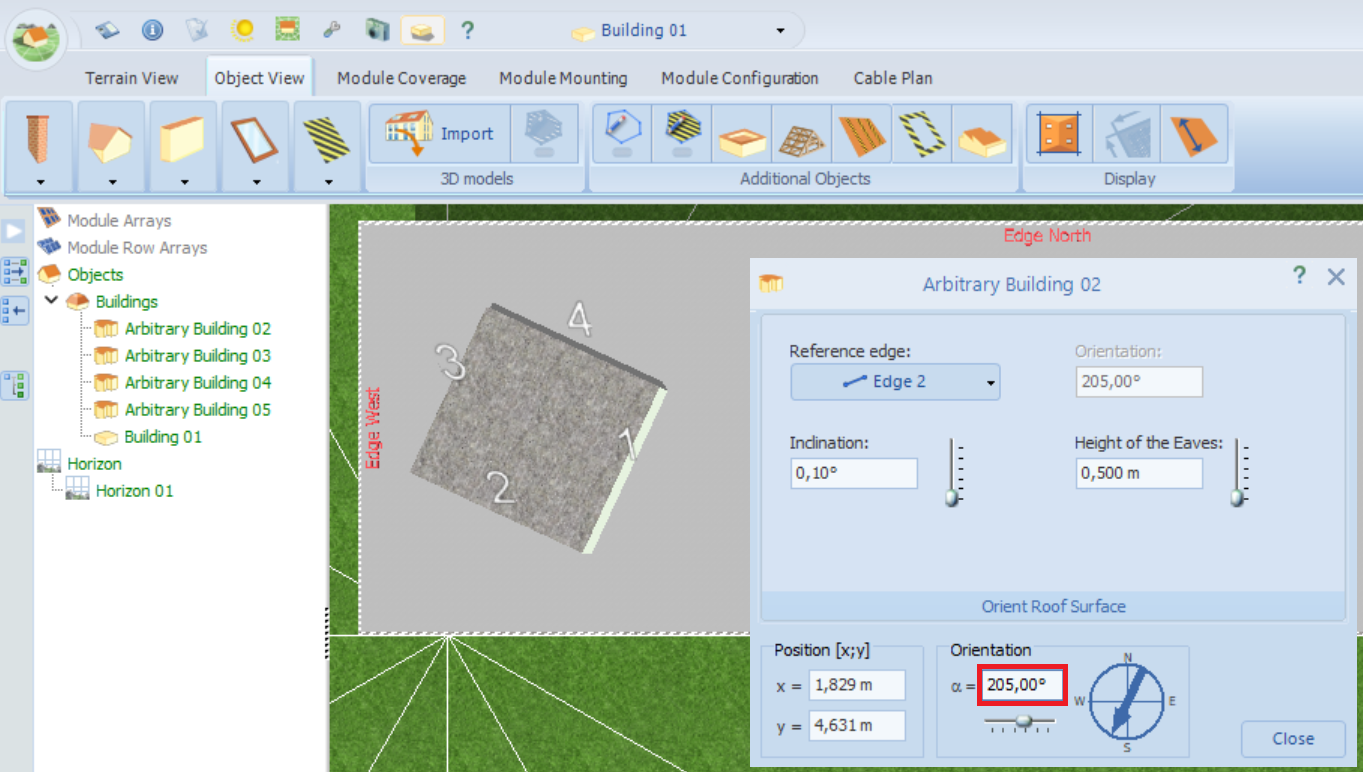
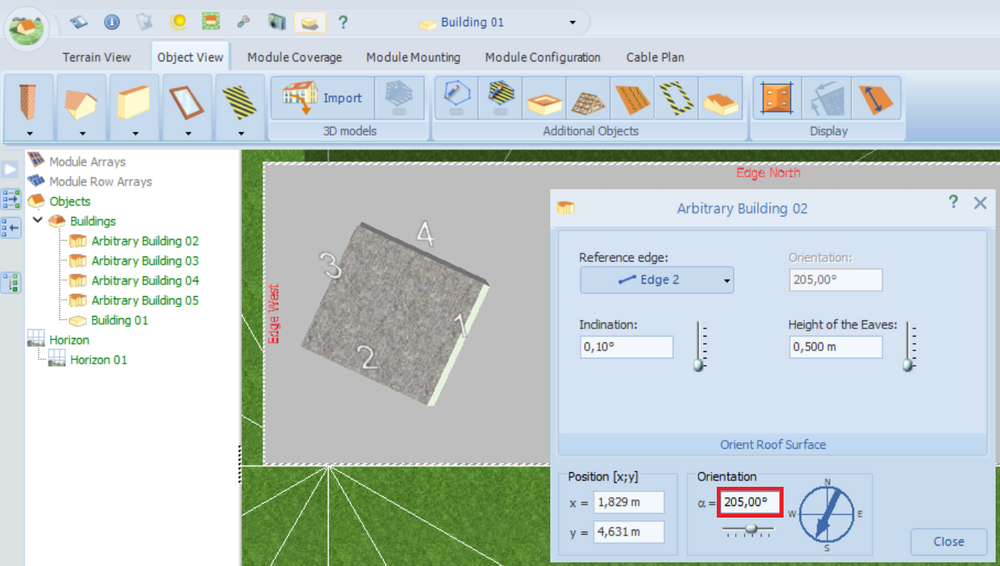
Hello, Thank you for your inquiry. You can rotate each building individually by 25 degrees (provided there is sufficient space on the roof): The "Multiply Object" function also works if your building is not aligned at right angles to the axes. Please feel free to send your project file to hotline@valentin-software.com, and we will take a look at it.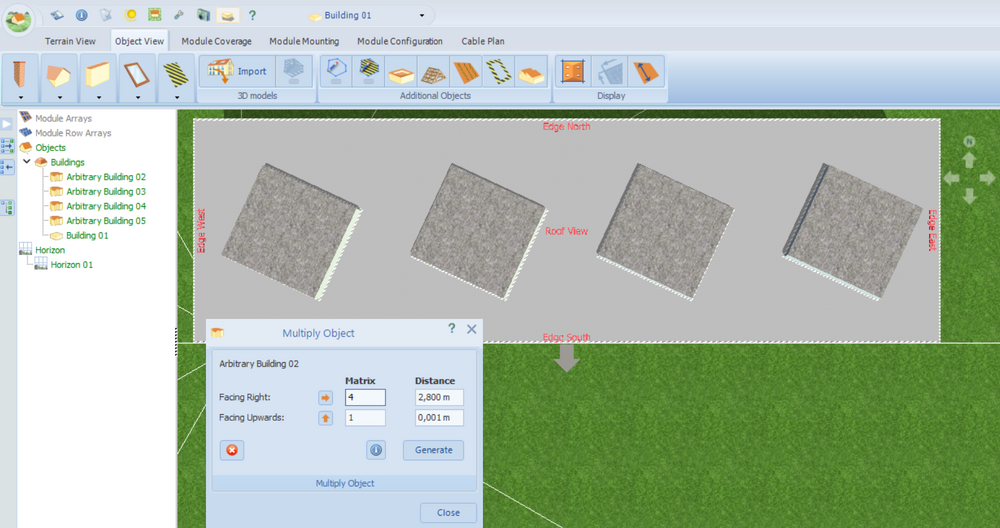
-
orientation Can you rotate multiple buildings or change the orientation
hotline_oh replied to labrosse's topic in PV*SOL
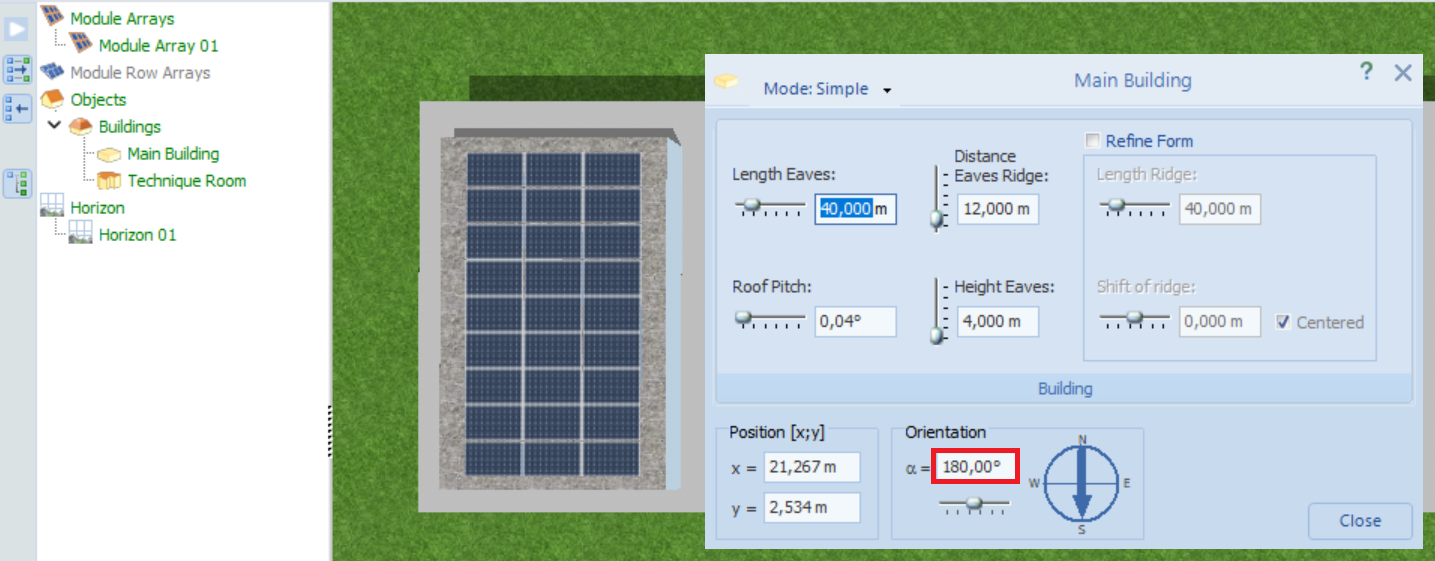
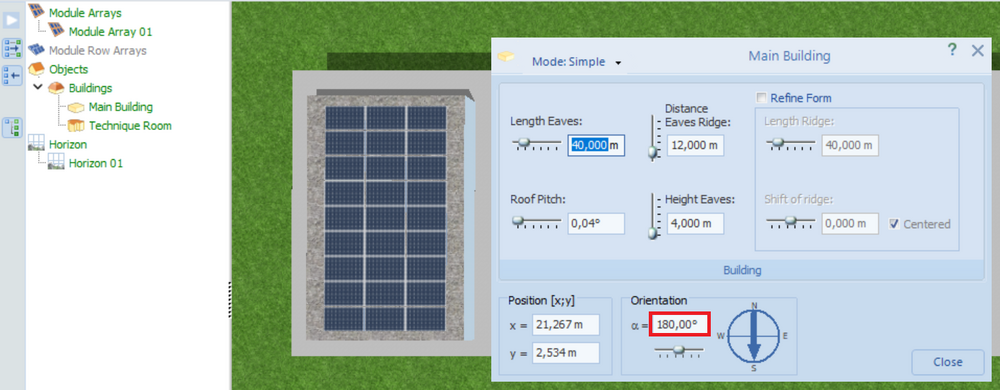
Hello, Thank you for your inquiry. Which part of the building do you want to rotate, and by how many degrees? You can rotate the main building by right-clicking on it in the tree view on the left, selecting "Edit," and entering the new orientation: Unfortunately, you can only change the orientation of the technique rooms if their dimensions are small enough to allow them to be rotated on the roof of the main building. If you have configured the technique rooms incorrectly, you only need to configure one of them properly; you can then delete the others and copy the first one. If that does not work, please feel free to send your project file to hotline@valentin-software.com, and we will take a look at it.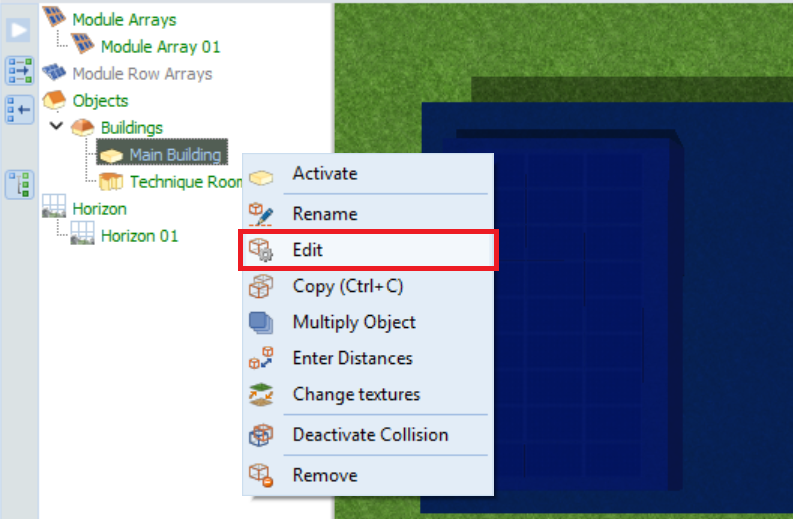
-
Hallo Thomas, vielen Dank für deine Anfrage. Die Lastprofile “Klimaanlange (simpel)” wurden auf Basis des Verlaufs der Außentemperatur am angegebenen Standort erstellt (bzw. am Referenzstandort bei deutschen Klimazonen gemäß VDI-Norm 4655): Falls die Außentemperatur mehr als 26°C beträgt: Konstante Last von 2000 W (Leistungsaufnahme der Klimaanlage) Falls die Außentemperatur 26°C oder weniger beträgt: Konstante Last von 20 W (Stand-by-Verbrauch)
-
Hallo, vielen Dank für deine Anfrage. Wir stimmen dir zu, dass es nicht optimal ist, dass Verschaltung und Kabelplan gelöscht werden, wenn einzelne Anlagenkomponenten getauscht, gelöscht oder hinzugefügt werden. Wir arbeiten an einer neuen Programmversion, in der Änderungen flexibler vorgenommen werden können. Wann wir diese Programmversion veröffentlichen, steht aber noch nicht fest. Du kannst das Problem minimieren, indem du bei großen Anlagen darauf achtest, für jeden Wechselrichter eine eigene Teilanlage anzulegen, also nicht alle Modulflächen gemeinsam, sondern jeden Wechselrichter separat zu verschalten. Wenn dann Änderungen erforderlich sind, löschst du nicht die Konfiguration der gesamten Anlage, sondern nur die der Teilanlage/des einen Wechselrichters. In unseren FAQ findest du weitere Hinweise dazu.
-
Hallo, vielen Dank für deine Anfrage. Es muss leider weiterhin jede Modulfläche einzeln exportiert werden und in K2 Base müssen separate Projekte angelegt werden. Momentan ist leider keine Änderung geplant, aber wir werden den Wunsch noch einmal intern weitergeben.
-
3D-Modelle nur bis 1.200 MB RAM danach Absturz
hotline_oh replied to SMARTechSolar's topic in PV*SOL
Hallo Chris, vielen Dank für deine Anfrage. Da es sich bei PV*SOL premium zurzeit noch um eine 32-Bit-Anwendung handelt und auch die Mehrkerntechnologie keine Anwendung findet, ist die Größe des Arbeitsspeichers (RAM), und die Anzahl der Prozessorkerne erst einmal zweitrangig. Es kann zurzeit nur auf maximal 2 GB Arbeitsspeicher zugegriffen werden. Mit der neuen Programmversion PV*SOL premium 2027 R1, die im November veröffentlicht wird, wird es hier aber Verbesserungen geben. Wir sehen häufig, dass unsere Kunden 3D-Modelle importieren wollen, die zu viele unnötige Details enthalten. Benötigt wird nur die Gebäudehülle (ohne Details der Innenarchitektur) und die umstehenden Objekte, die zur Verschattung beitragen. Alle übrigen Details sollten vor dem Import entfernt werden. Wenn dein 3D-Modell dann immer noch zu groß ist, verkleinerst du es, indem du in einer 3D-Modell-Bearbeitungssoftware die Anzahl der Eckpunkte reduzierst. In MeshLab geht das beispielsweise über Filters → Remeshing, Simplification and Reconstruction → Simplification. Bitte beachte unsere Hinweise für den Import von 3D-Modellen und auch die Systemvoraussetzungen: Internetzugang Prozessor: Intel i3, AMD Ryzen 3 oder höher Arbeitsspeicher: 4 GB Festplattenspeicher: 2 GB Monitorauflösung: mind. 1.280 x 768 Pixel Betriebssysteme: Windows 10 (64-Bit, mit aktuellem Servicepack), Windows 11 (64-Bit) Grafik: DirectX– kompatibel (mind. Version 9.0c), 2 GB, OpenGL – Unterstützung Sonstiges: Microsoft .Net Framework 4.8 Wenn PV*SOL premium abstürzt und du die Möglichkeit hast, einen Fehlerbericht abzuschicken, sende ihn ab und teile uns die genaue Uhrzeit des Fehlerbericht mit (per Mail an hotline@valentin-software.com), dann können wir ihn zuordnen. Sende uns außerdem gern mal deine Projektdatei und das 3D-Modell an hotline@valentin-software.com, dann sehen wir uns das an. Falls die Dateien zu groß sind, nutze WeTransfer, SwissTransfer oder ähnliches. -
Einordnung "SOC Batterie" der Simulationsergebnisse
hotline_oh replied to JohannaVD's topic in PV*SOL
Hallo Johanna, vielen Dank für deine Anfrage. Der SOC10 gibt den Ladezustand (SOC) der Batterie basierend auf einer Batteriekapazität von C10 an. Das Diagramm zeigt den durchschnittlichen Ladezustand (bezogen auf C10) der Batterie für 12 Monate. Im Dezember liegt der durchschnittliche Ladezustand bei knapp 20 %, im Mai bei knapp 29 %. Die Tiefe, bis zu der die Batterie entladen wird, beeinflusst die Lebensdauer und die Anzahl der Ladezyklen. Flache Entladungen, bei denen die Batterie nicht vollständig entladen wird, sind schonender für die Batterie und können ihre Lebensdauer verlängern, während tiefe Entladungen die Anzahl der Ladezyklen verringern können. Einige Quellen geben an, dass Li-Ionen-Batterien mit einem durchschnittlichen SOC von 50 % die längste Lebensdauer haben, andere sprechen von 65-75 %. -
Rexplorer 3D model – hatched areas on the roof that can't be covered
hotline_oh replied to Greentechbau's topic in PV*SOL
Hello, Thank you for sharing the project file. If hatched areas appear incorrectly on an automatically generated layout area, your only option is to draw the layout area manually. Unfortunately, it is not possible to manually draw a single layout area while retaining the other automatically generated ones; instead, all automatically generated layout areas are deleted, requiring you to draw all areas manually. We will inform Rexplorer about this issue and request a revision. -
Rexplorer 3D model – hatched areas on the roof that can't be covered
hotline_oh replied to Greentechbau's topic in PV*SOL
Hello, Thank you for your inquiry. Please send us your project file to hotline@valentin-software.com so that we can take a closer look at it. -
Hello, Thank you for your inquiry. You do not lose the configuration/stringing. You only update the cable plan if it does not match the configuration/stringing. We have now resolved the issue. From the next software update onwards, the cable plan will always be updated automatically.
-
Hello, Thank you for your message. Unfortunately, the net-billing concept currently in effect in Croatia cannot be modeled in PV*SOL. Our development department has been informed that, as of 2026, a minimum payment period of one month is required for Croatia.
-
Rexplorer 3D model – hatched areas on the roof that can't be covered
hotline_oh replied to Greentechbau's topic in PV*SOL
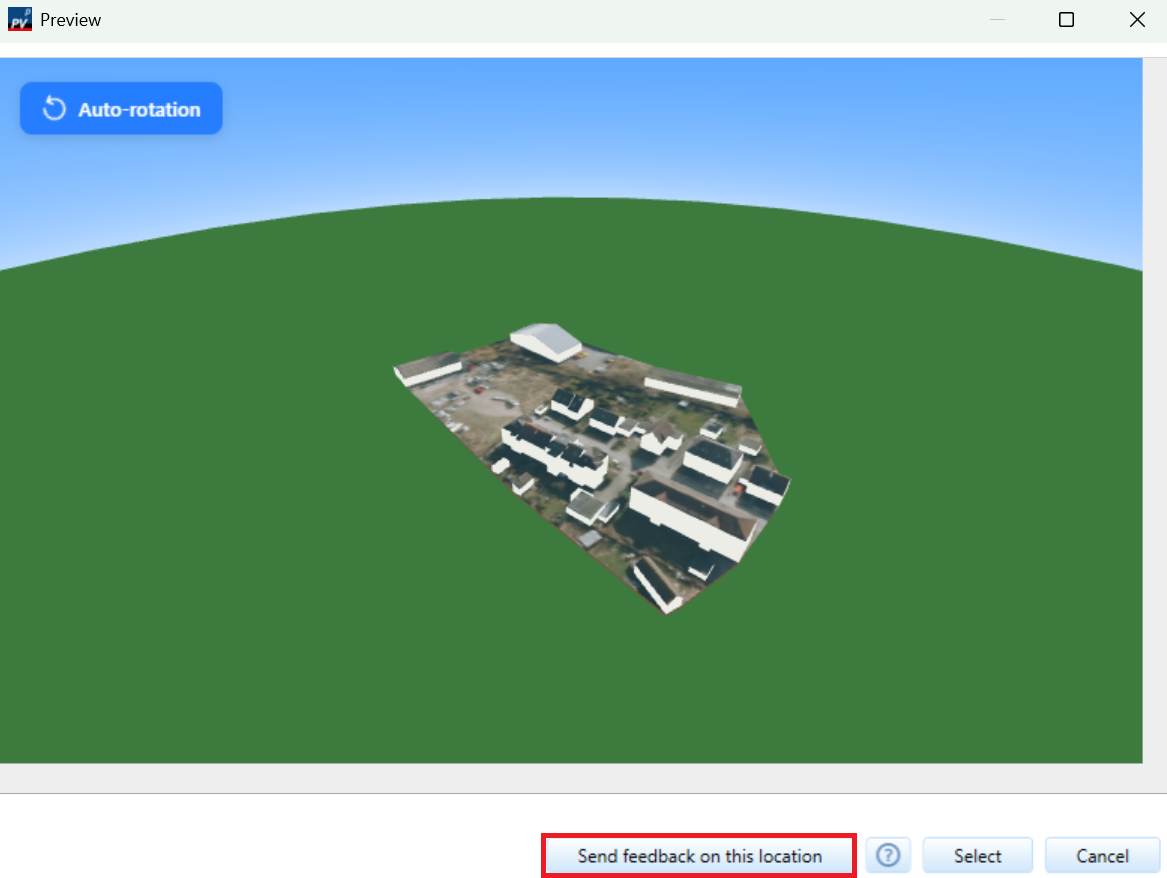
Hello, Thank you for bringing this to our attention. This is an error in the model. You can report incorrectly generated 3D models to Rexplorer directly via the preview window. In this case, we will inform Rexplorer and ask them to correct the model.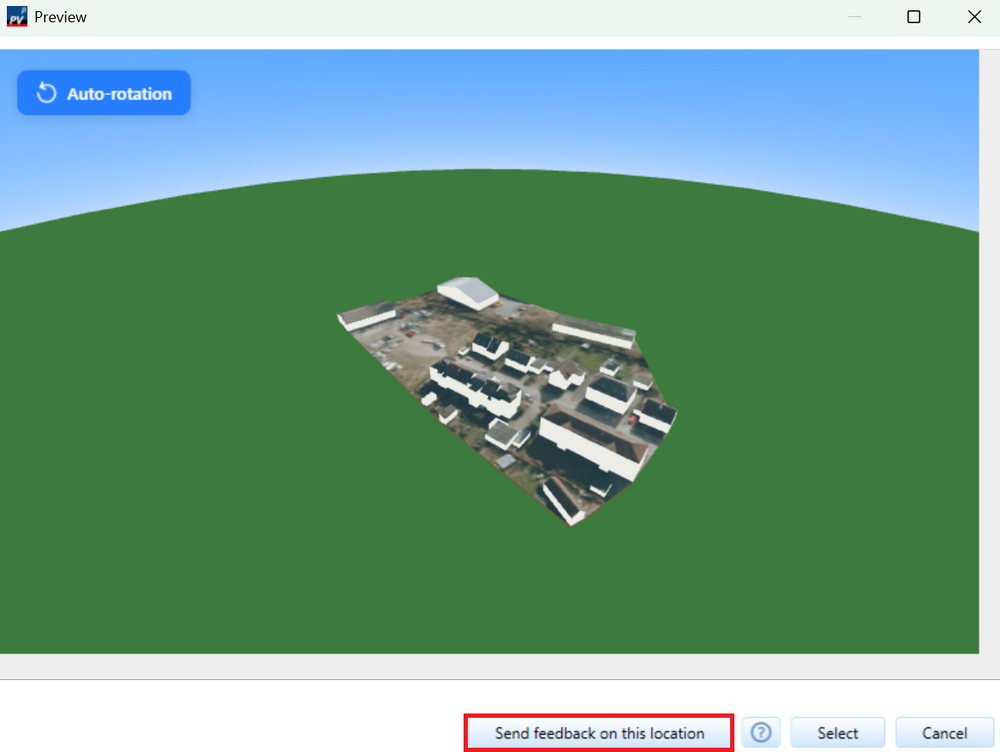
-
Current & Voltages not showing in Export Simulation Results
hotline_oh replied to Cameron.H.04's topic in PV*SOL
We would like to refer once again to your inquiry. Some simulation results are provided per module area. Unfortunately, this is only possible for up to 20 module areas. Projects with more than 20 module areas would need to be split into sub-projects in order to obtain the simulation results per module area. You're also welcome to send us your project file (to hotline@valentin-software.com) so we can take a closer look at it. -
Generating Hourly Daily and Monthly Annual Production Curves
hotline_oh replied to J. Esteban's topic in PV*SOL
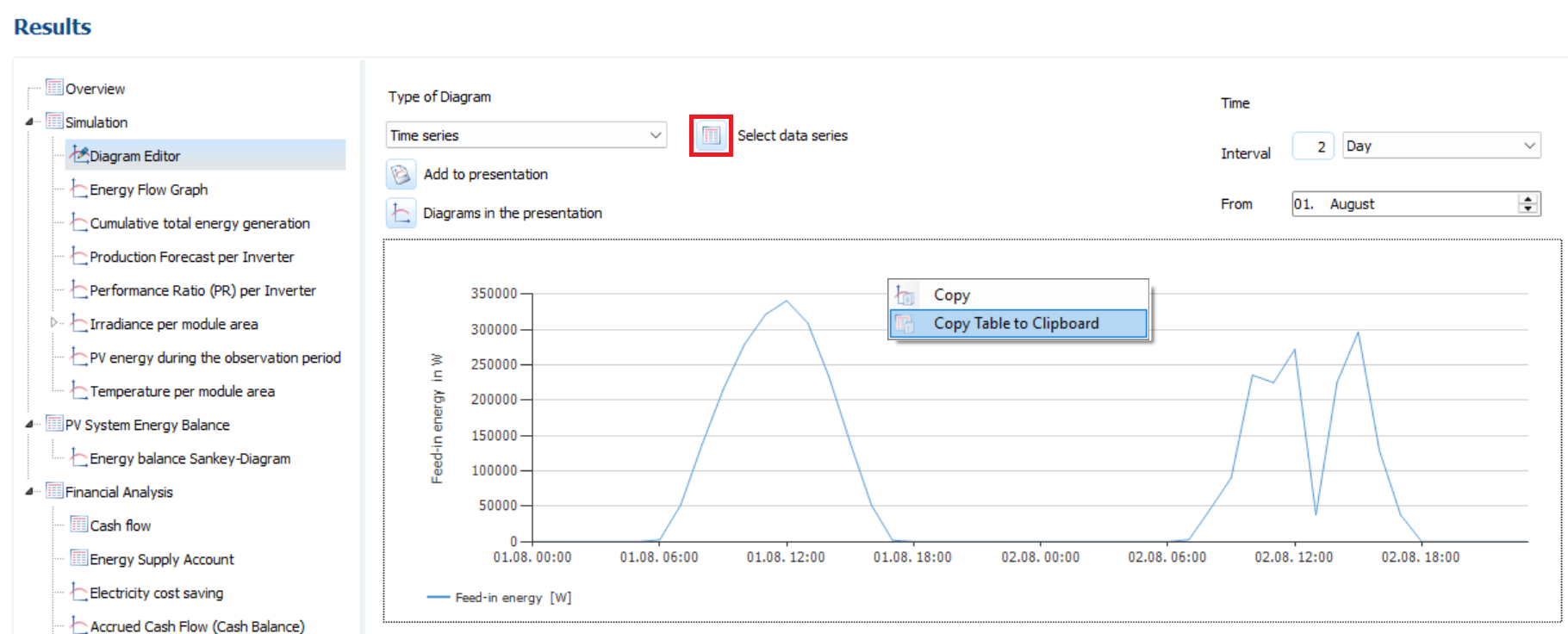
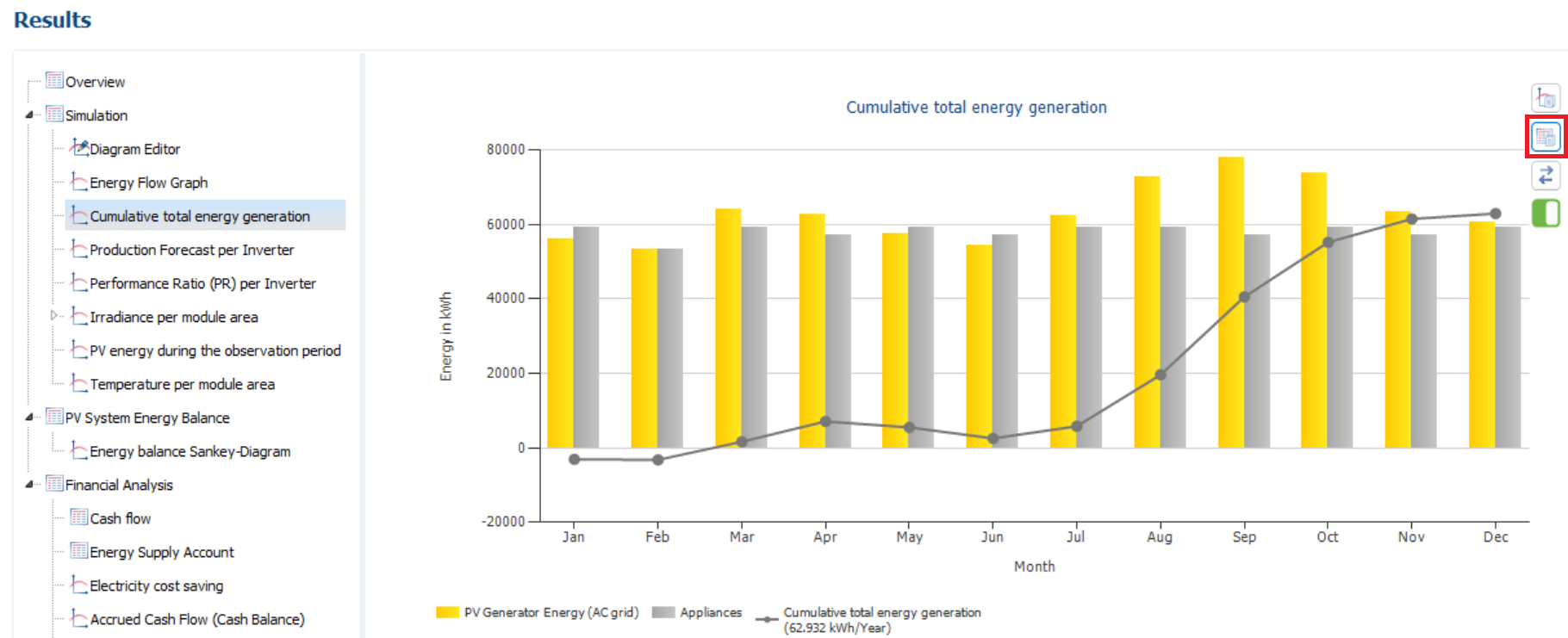
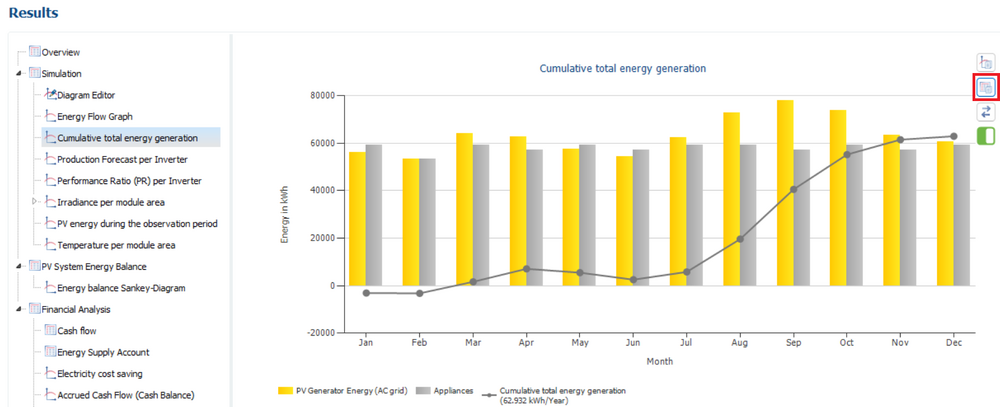
Hello, Thank you for your inquiry. Daily generation curve with hourly resolution (typical sunny day and typical cloudy day): In the Diagram Editor, select the data series (e.g., feed-in energy) and the time interval. Then, identify two suitable days (e.g., August 1st and 2nd). By right-clicking within the chart, you can copy the hourly values and export them to Excel. Annual generation curve with monthly resolution: You will also find a "Copy Table to Clipboard" button on the Cumulative total energy generation page.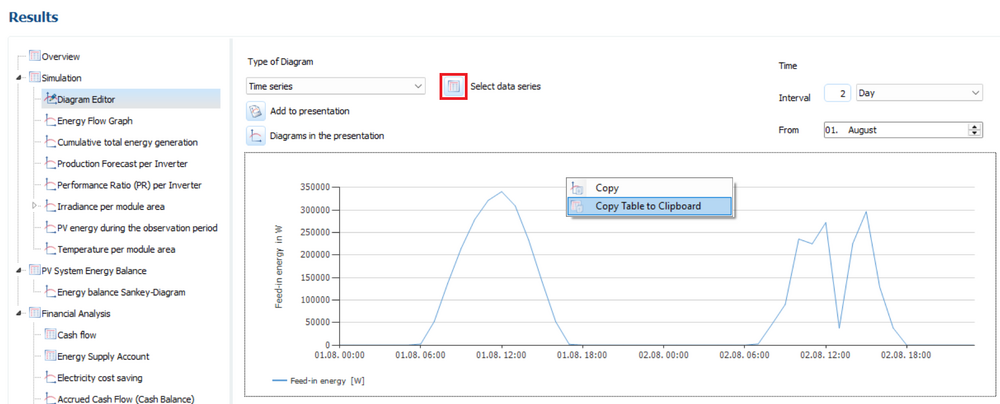
- 1 reply
-
- 1
-

-
Guten Tag, vielen Dank für Ihre Anfrage. Für eine Ost-West-Anlage legen Sie eine zweite Modulfläche an. Für jede Modulfläche geben Sie die jeweilige Ausrichtung an. Bei der Modulverschaltung wählen Sie anschließend "Modulflächen gemeinsam verschalten". Wenn der Wechselrichter nur einen einzigen MPPT besitzt, dann setzen Sie das Häkchen für die Polystring-Verschaltung und fügen eine zweite Zeile hinzu. Um einen Sinvert-Wechselrichter auswählen zu können, setzen Sie in der Wechselrichter-Auswahl das Häkchen für "Auch Produkte, die nicht mehr lieferbar sind".
-
Guten Tag, vielen Dank für Ihre Anfrage. Die Kombination von Elektrofahrzeugen und thermischem System ist derzeit leider noch nicht möglich. Mit einem der kommenden Software-Updates wird es diese Anlagenart geben. Sie können sich behelfen, indem Sie zwei Simulationen durchführen. Zuerst simulieren Sie nur den Haushaltsverbrauch und die Elektrofahrzeuge, lassen sich die Stunden-Werte (oder 15-Minuten-Werte) der Ladeenergie ausgeben und importieren die Ladeenergien als zweites Lastprofil (zusätzlich zum Haushaltsverbrauch), um im zweiten Schritt das thermische System zu simulieren. Sie können das auch umgekehrt machen: Zuerst das thermische System simulieren und dieses Profil als zweites Lastprofil importieren, um dann die Elektrofahrzeuge zu simulieren. Die Reihenfolge sollte berücksichtigen, welcher der beiden Verbraucher (E-Fahrzeuge oder Wärmepumpe) primär und welcher nachrangig versorgt werden soll. Unabhängig von der Reihenfolge können allen Verbrauchern separate Bezugstarife zugewiesen werden, um die jeweiligen Einsparungen zu berücksichtigen. Sie benötigen für den Import des Lastprofils nur die eigentlichen Verbrauchswerte (nur die Werte einer Spalte), ohne Zeitangaben und Spaltenüberschriften. Der Import eines Lastprofils wird auch in unserer Hilfe erläutert.
-
Hallo, vielen Dank für deine Anfrage. Der Winkelkorrekturfaktor wird nicht von uns berechnet, sondern muss vom Modulhersteller im Datensatz des PV-Moduls für einen Einfallswinkel von 50° hinterlegt werden. Wie bei vielen anderen Parametern auch, besitzt der Winkelkorrekturfaktor jedoch keinen festen Wert, sondern ist vom jeweiligen Einfallswinkel abhängig. Bei modernen Modulen liegt der Wert für einen Einfallswinkel von 50° bei etwa 100 %. Er ist zwar meist etwas niedriger, aber gerundet ist dieser Wert korrekt. Für eine präzise Simulation müsste eigentlich eine Kennlinie berücksichtigt werden; dies ist jedoch derzeit nicht vorgesehen. Das Thema wurde zwar bereits diskutiert, aber bislang noch nicht umgesetzt.
-
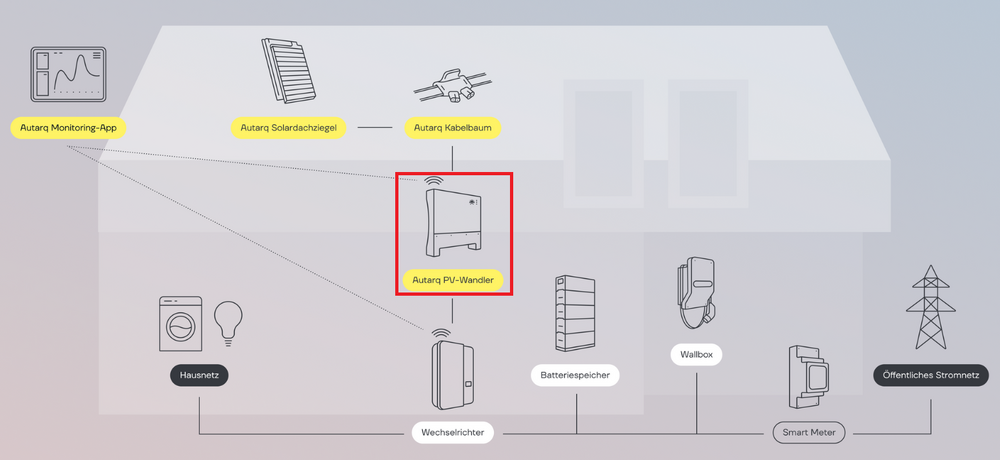
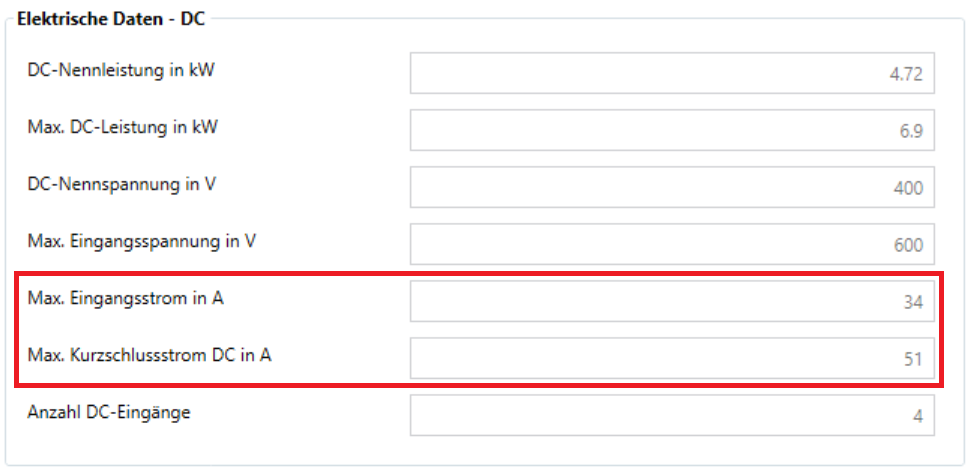
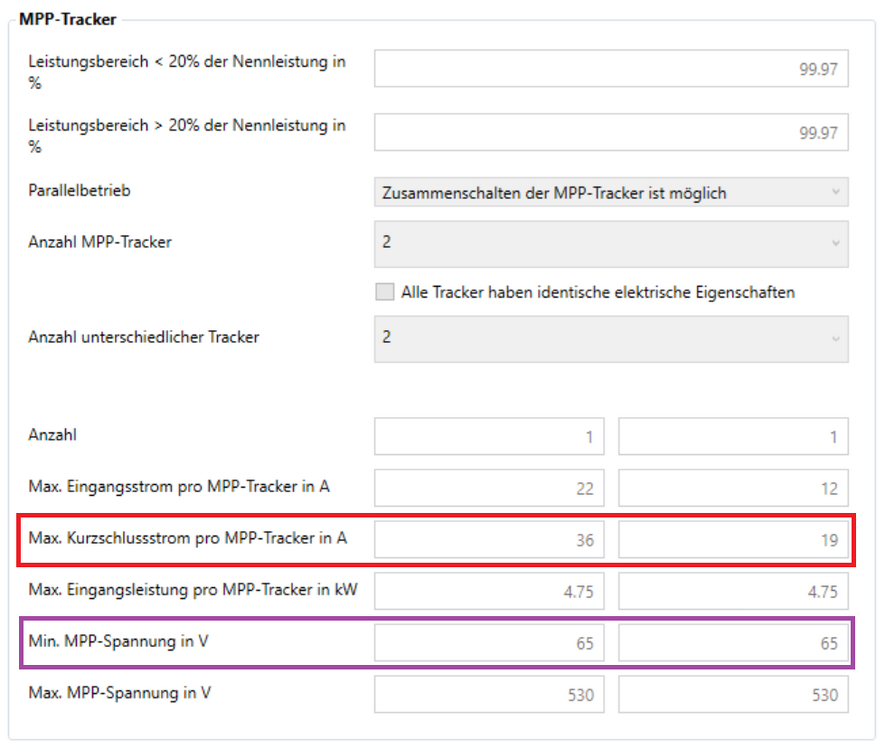
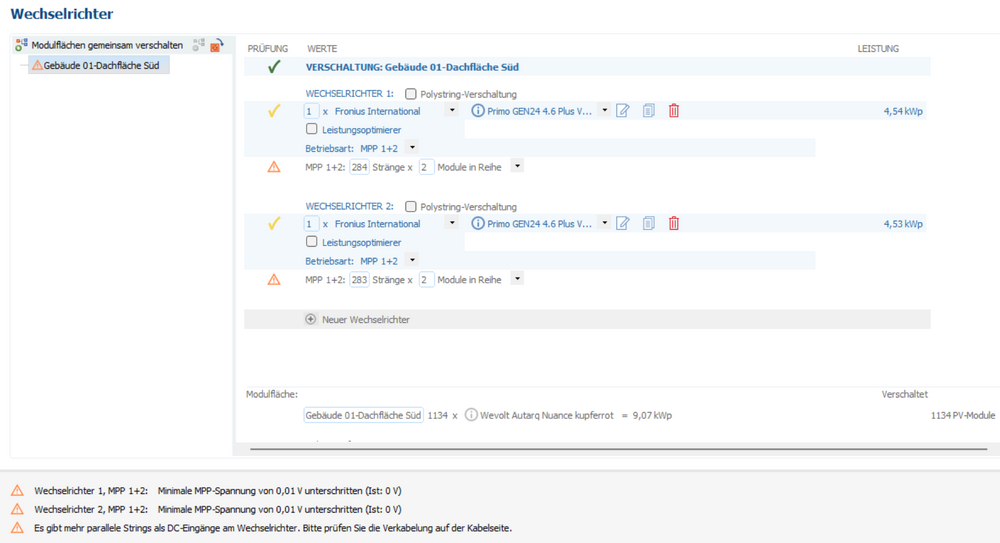
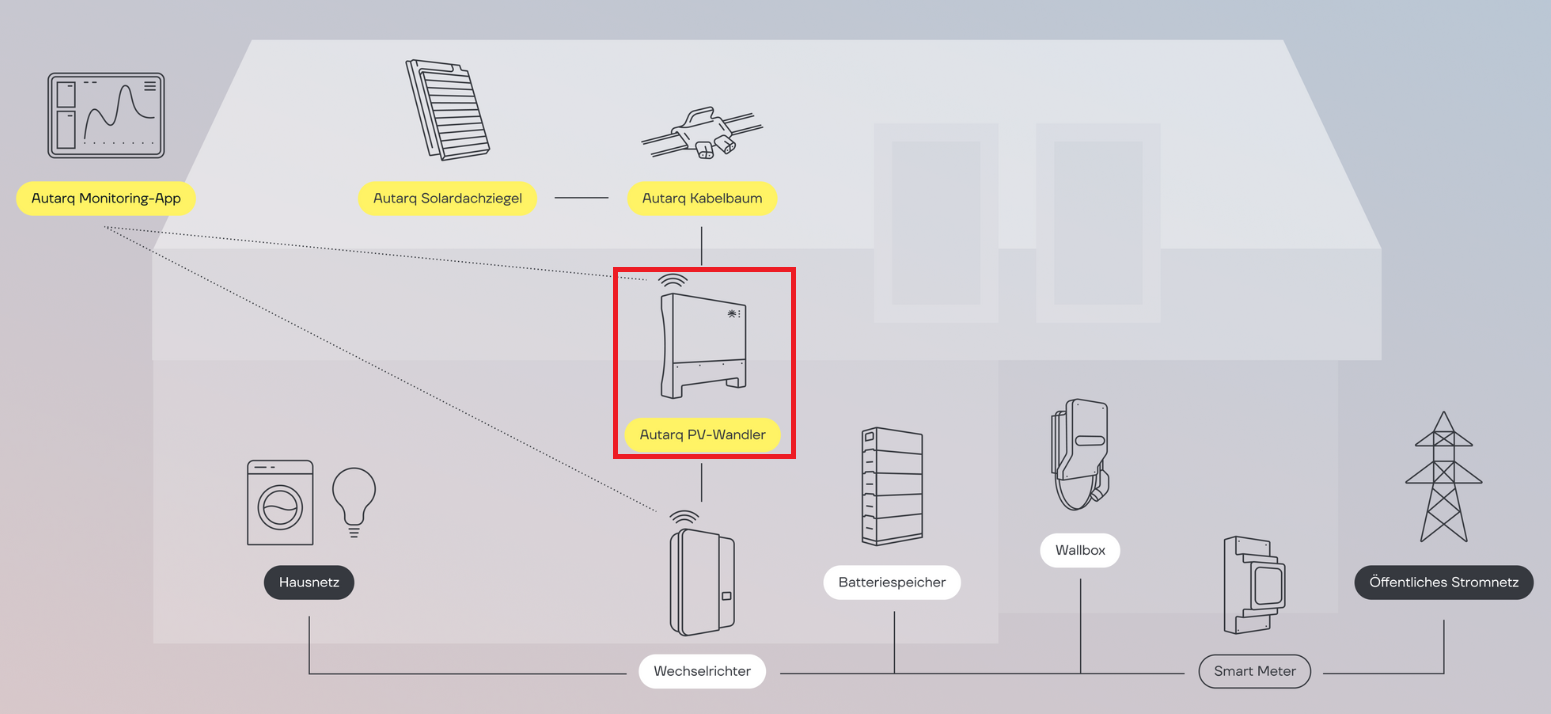
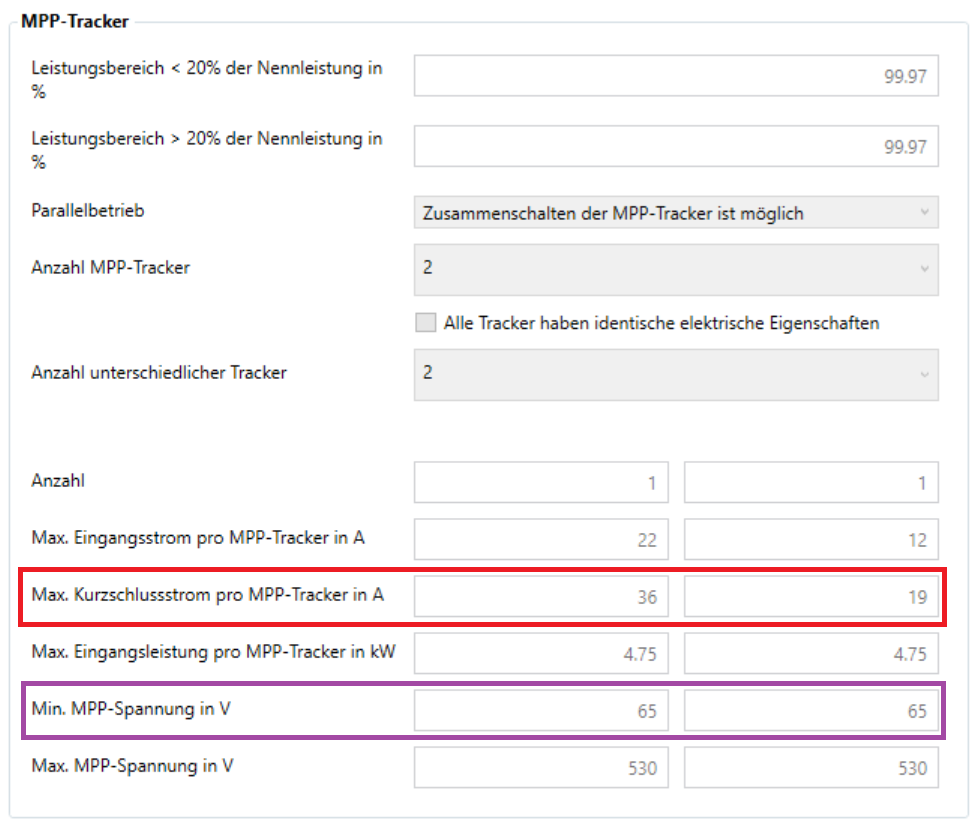
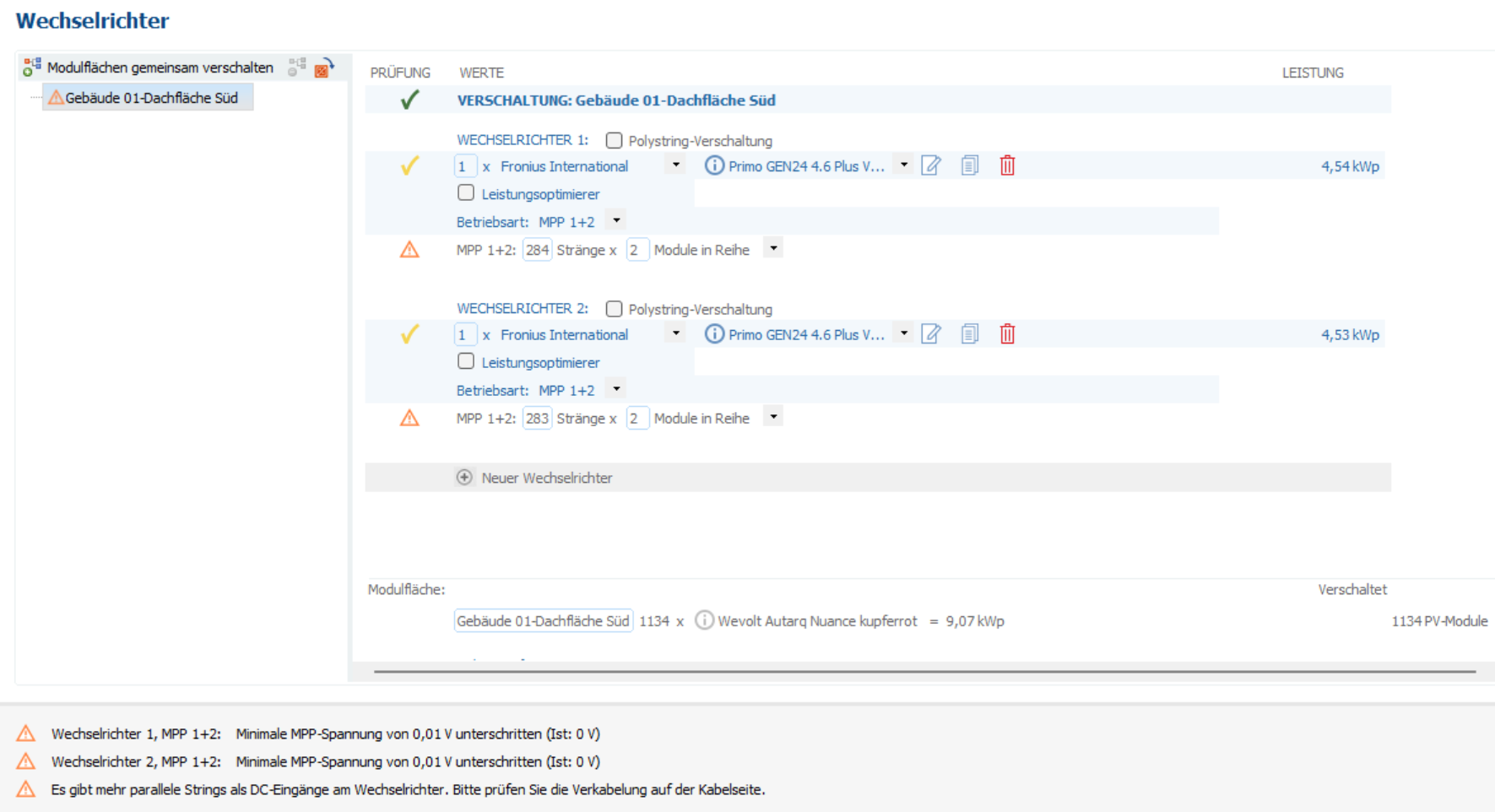
Vielen Dank für die Zusendung der Projektdatei und des Datenblatts. In einem Autarq-System werden nicht alle Ziegel parallel verschaltet, sondern immer zwei Ziegel in Reihe. Dadurch verdoppelt sich die Nennspannung von 41 V auf 82 V und die Leerlaufspannung von 49 V auf 98 V. Zwischen den Solarziegeln und dem Wechselrichter befindet sich ein PV-Wandler, an dem je zwei in Reihe geschaltete Ziegel parallel verschaltet werden. Der PV-Wandler wandelt die von den zwei in Reihe geschalteten Ziegeln erzeugte Gleichspannung (60-120 VDC) in die Eingangsspannung für den Wechselrichter (200-450 VDC) um. Dabei werden gleichzeitig die hohen Stromstärken in den passenden Eingangsstrom für den Wechselrichter umgewandelt. Bedauerlicherweise kann der PV-Wandler in PV*SOL premium nicht abgebildet werden. Sie können sich möglicherweise behelfen, indem Sie den Datensatz des Wechselrichters kopieren und so anpassen, dass die elektrischen Eigenschaften des PV-Wandlers (niedrigere Eingangsspannung, höherer Eingangsstrom) mit berücksichtigt werden. Die Verschaltung könnte so aussehen: Die Simulation kann durchgeführt werden, aber dass die Simulationsergebnisse realistisch sind, können wir nicht garantieren, da auch der PV-Wandler Verluste verursacht, die nicht berücksichtigt werden.