Airel
Members
-
Joined
-
Last visited
-
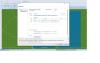
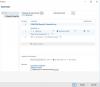
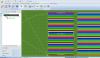
Support Team, thanks for your quick response. The real cause of my inverter not appear is that their configuration was different phases of the system, corrected. The real problem I have is that my inverter is 12 entries DC, I planned 7 parallel series of 16 modules in series per entry, so I grouped the modules in the 2 areas of modules, but the program creates 84 series of 16 modules in series and I find no way to configure the parallel connections. Judging by the color code, it will apparently accommodating each series of 16 at an input, so that the row i + 12n is assigned to the input i. That I like is that rows 1-7 will be connected to input 1. 8 to 14 to the second, and so on. Is this possible? Can you help me? By the way, how can I pan, zoom or rotate the image in the graphic view?
-
I have a similar problem My own inverter dont appear in the list, so I cant add it to my connection. I am trying to combine two module areas to connect to a 500 kW inverter, 12 DC inputs, 1 MPP tracker. Please help me. Thanks in advance